Categories

CRM features for real estate agencies

EstateIQ manages clients and client requirements, offers, publishing to portals, sales and reports in one place.

The groups follow the work of an agency, from the first conversation with a client to a closed sale and reports.

Clients and requirements

A client is a person or company you work with, and a client requirement describes what a buyer is looking for. Once both are in the system, EstateIQ finds matching offers by itself, and the whole team sees where you stand.

  • A client in one place. Contacts, source, assigned agent and documents, with a warning if the client already exists.
  • Contacts with the client. Every call, email and meeting is recorded with the channel and the outcome, so your colleagues know how far you have got.
  • A requirement with criteria. Price, area, rooms and locations describe exactly what the buyer is looking for.
  • Matching offers. Every few minutes the system matches new offers with client requirements, and the list refreshes while you change the criteria.
  • Sending to the client. You send selected offers by email as a PDF, and the sending can be recorded as a viewing.
  • Offer search. When a buyer simply asks what you have, you browse the offers without saving a requirement.
  • Fill in the fields from a description. You type in what the buyer said, and AI suggests criteria that you check before saving.
  • Automatic anonymization. Clients’ personal data is anonymized when the retention period expires, so you do not have to track it by hand.
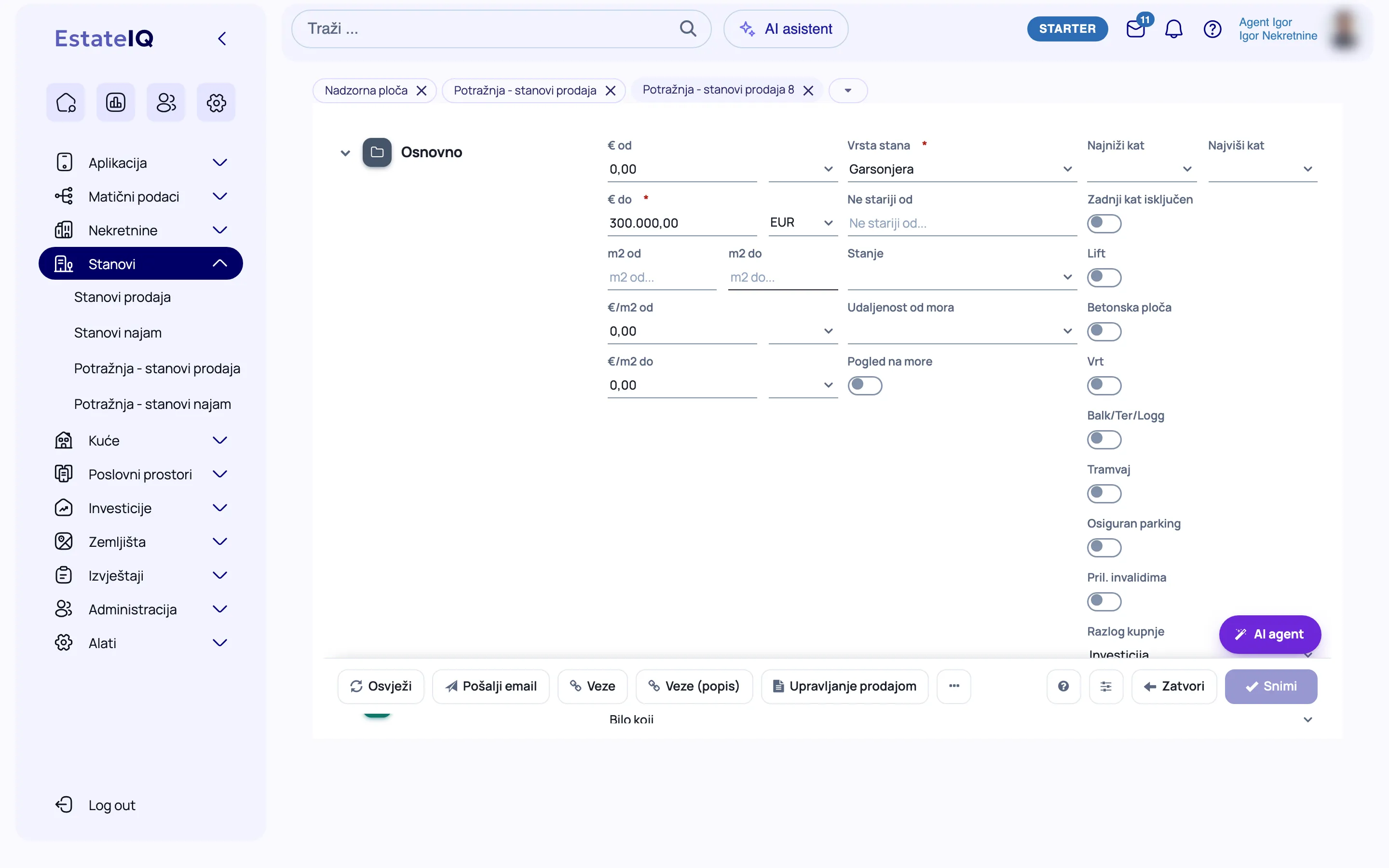
A client requirement form in EstateIQ with the buyer’s criteria.

Offer entry

An offer is a property that the agency sells or rents out. You receive it with the basic details and complete it as more data arrives, and the form shows you at all times what is still missing.

  • A form in sections. All the fields are on one page, and the labels next to the sections show how many required fields are still missing.
  • Address from Google Maps. The street and the position on the map fill in by themselves, and a separate public coordinate keeps the exact address from portal visitors.
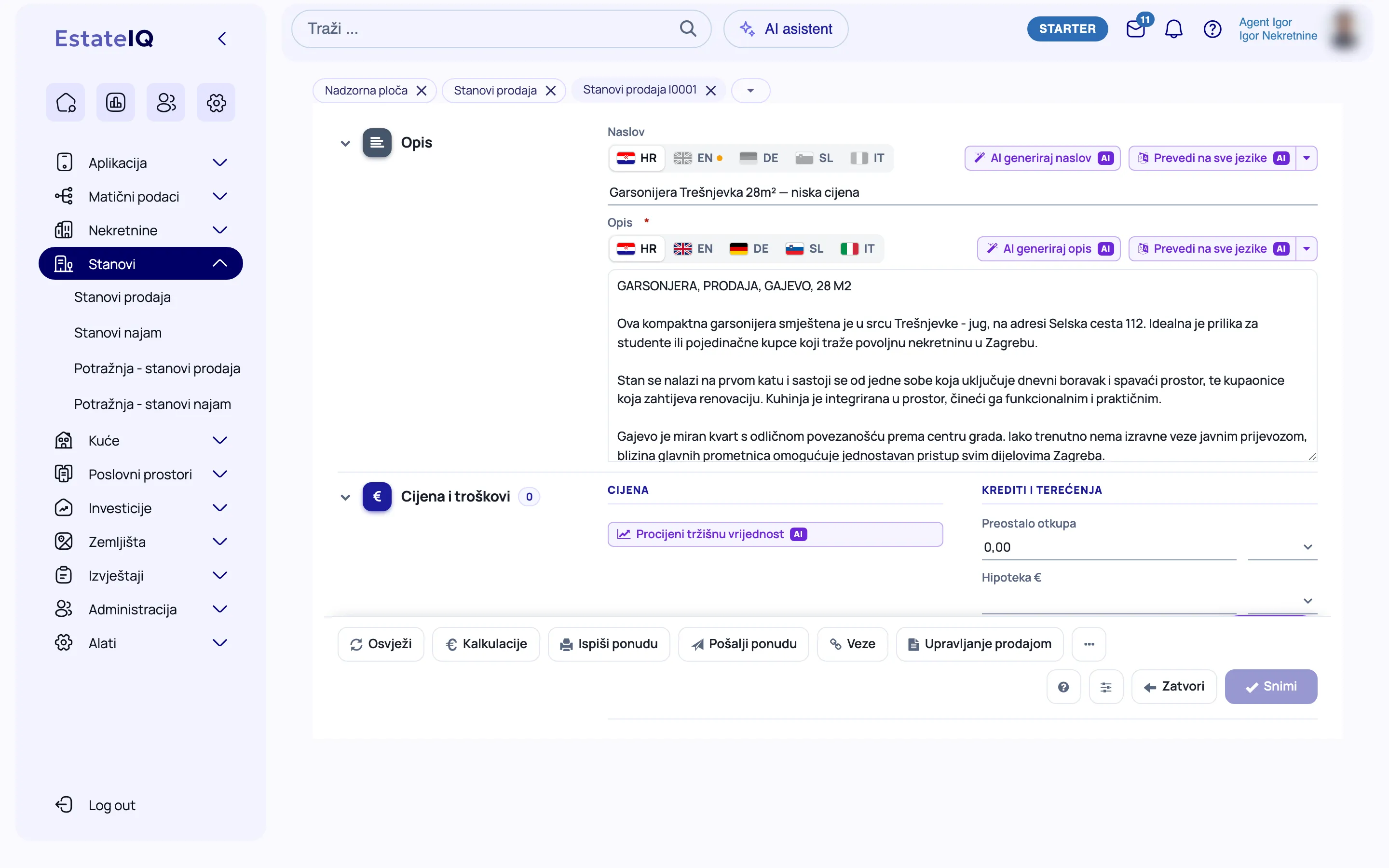
  • AI title and description. The text is created from the offer data, and you review and refine it.
  • Translations. You translate the description into all the languages of the offer with one click, and with the setting turned on, a nightly translation fills in the published offers.
  • AI market value estimate. A value range and factors as a starting point for the conversation with the seller. It is not an official valuation.
  • Images and watermark. Images are reduced on upload and receive the agency’s watermark, and you change the order by dragging.
  • Documents with the offer. You keep the brokerage agreement and the price list with the offer, and the system asks for them before the offer is opened.
  • Price history. Every price change is remembered, and the prices achieved stay recorded for market monitoring.
The Description section of the offer form, with translations and AI buttons.

Publishing

An offer goes to the website and the portals once it is open and in the Web group. You do not sign in to the portals by hand: EstateIQ fills them with export files that the portals fetch regularly.

  • A check before opening. An offer is opened only once the required fields, descriptions and documents are entered, so an incomplete listing does not go out.
  • Publishing through groups. The Web group sends the offer to your website and the active portals, and exclusion groups keep it off individual portals.
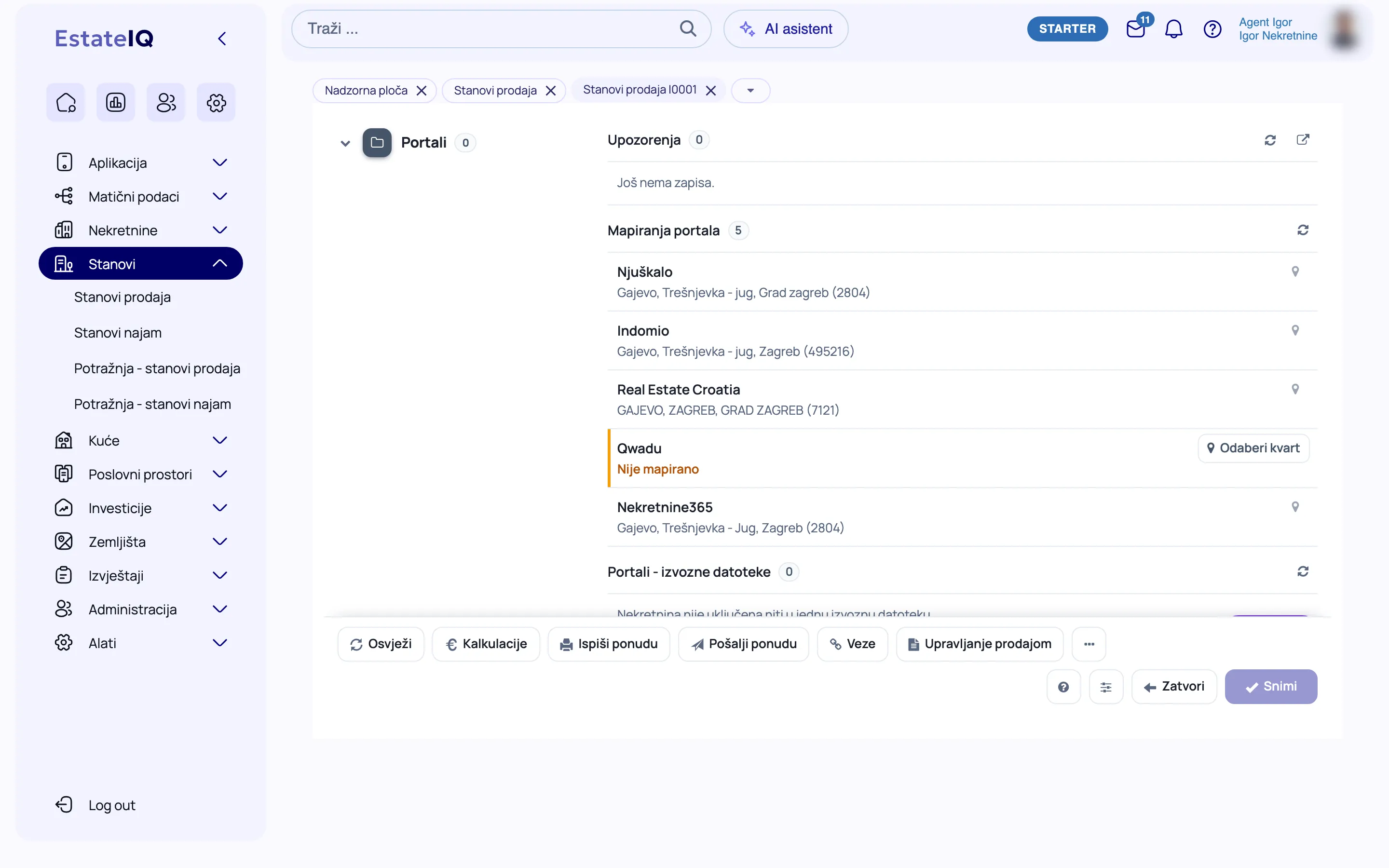
  • The Portals section. On the offer you see the warnings, the location on each portal and the export files it appears in.
  • Automatic withdrawal. A sold offer disappears from the portals after the next time the file is fetched, with no manual deletion.
  • Portals enabled for your agency. 20+ portals from a single entry, subject to your agreement with the portal. Our support enables the portal.
  • Export for your website. Offer data is always available in JSON and XML formats.
  • Additional channels. Enabled through support: OLX.ba and ImmoScout24 and advertising feeds for Meta and Google.
The Portals section on an offer in EstateIQ with warnings and the location mapping for each portal.

Sales

A sale links the seller’s offer with the buyer’s requirement. EstateIQ records every viewing, so you know what the buyer has seen and how far you have got.

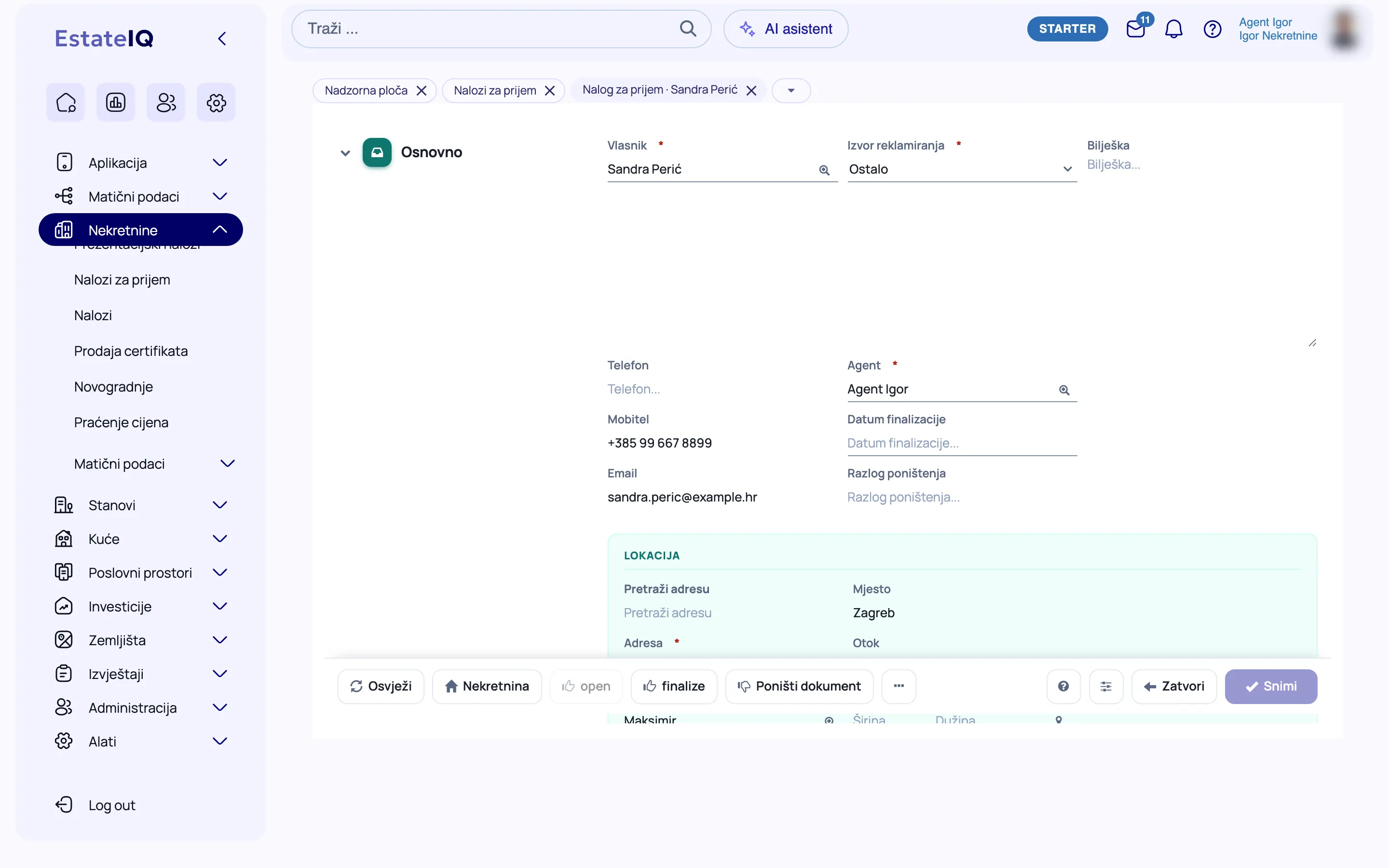
  • Intake order. When someone offers a property, the agent receives a work order from which a new offer is opened.
  • Viewing order. You gather the properties a buyer is viewing on one order, directly from the list of offers.
  • Documents for viewings. You print the viewing confirmation and the brokerage agreement with the buyer from the order, in Croatian, English or German.
  • Viewings. Offers the buyer has already seen are no longer offered to them, so you do not call twice about the same property.
  • Closing an order. An order closes by itself when all its items are completed or annulled.
  • Dashboard. Your offers by stage, open orders, deadlines and warnings are waiting for you right after you sign in.
  • New developments. Projects with a developer and a location are kept in a separate register.
A property intake order in EstateIQ with the seller, the agent and the location.

Closing

A preliminary contract, a sale and an annulment close an offer with one calculation. The data you enter there goes into the reports and into the brokerage register.

  • Sale management. The menu offers only the actions allowed in the current status and for your role.
  • One calculation. With a preliminary contract or a sale, the status of both the offer and the buyer’s requirement changes, so you do not update them separately.
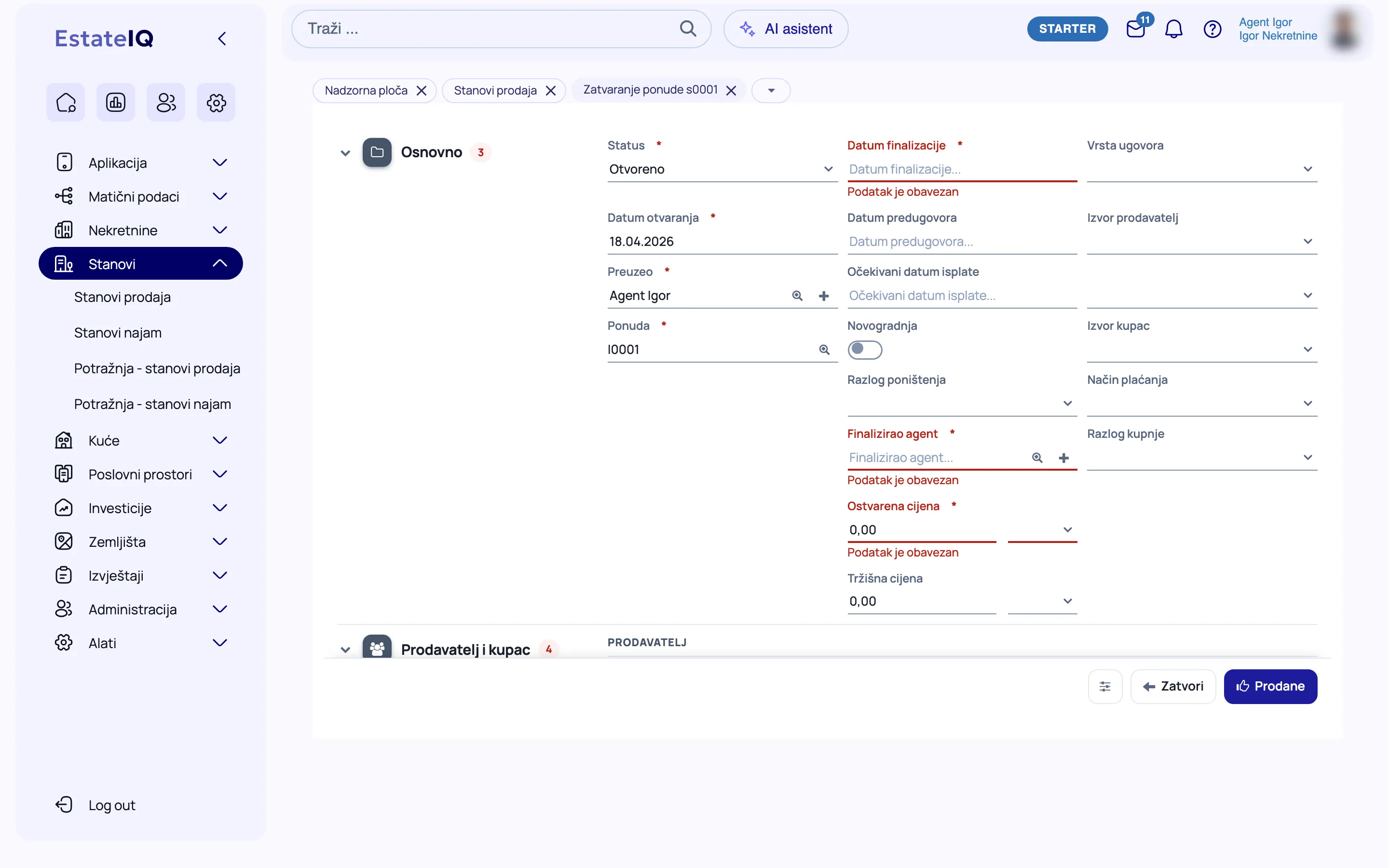
  • Required data on time. Before a preliminary contract and a sale, the system asks for the OIB, the address and the energy class, and you can also enter them in the calculation itself.
  • Commissions, invoices and payments. The commission amount is calculated from the price achieved, and you see the payments and any debt in the calculation.
  • Commissions only for authorized users. Junior and trial agents do not see commissions.
  • Reopening. If a deal falls through, the manager puts the offer back to work, and the old calculation stays on record.
  • Offer history. Every action is entered in the history, so the course of a deal can always be checked.
The calculation for closing an offer in EstateIQ, with its required fields.

Reports

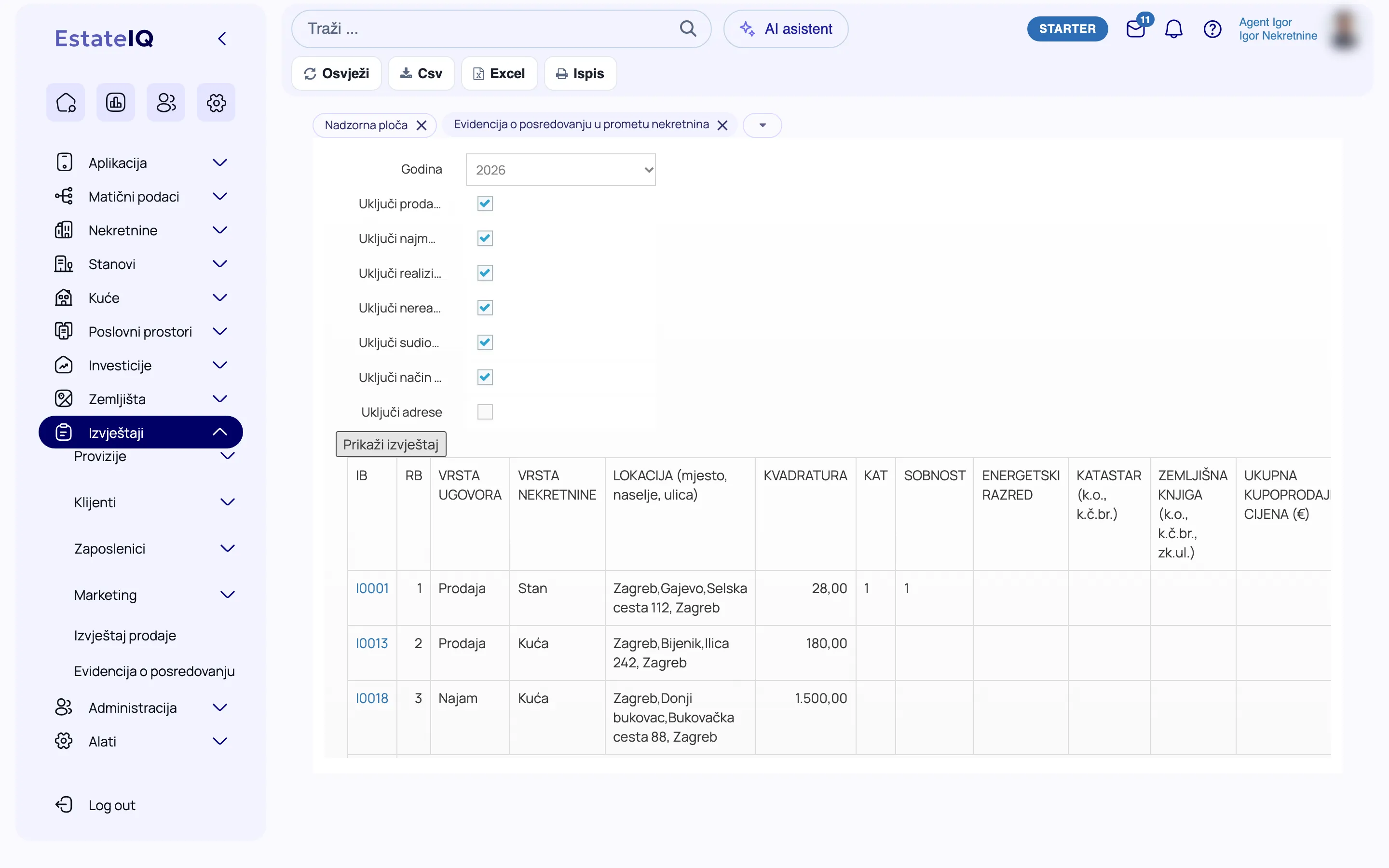
Reports are created from the calculations of closed offers and from contacts with clients. You choose the period yourself, and every report can be downloaded or printed.

  • Sales report. Sold offers by period, grouped by agent, source and property type.
  • Total sales. Deals with a preliminary contract and sold deals with prices and commissions, by period and business unit.
  • Brokerage register. Brokerage deals in a single year, in the form of a register table, from the data you have already entered.
  • Client sources. The sources of sellers and buyers show which advertising actually brings in sales.
  • Contacts with clients. Conversations with clients and contacts per requirement, for insight into the work with buyers.
  • Excel, CSV and print. You download every report for further processing or send it to a printer.

KPIs and targets

In the Professional and Enterprise plans

Annual targets per agent

The agent proposes their own annual targets, and management reviews them, changes them if needed and approves them. You spread the targets across months, evenly or seasonally, and every change stays on record.

KPI dashboard

Results are calculated automatically from the data in the CRM, for the current month or year. The agent sees only their own results, without financial data, and the agency owner and managers with KPI permissions open each agent’s dashboard.

The brokerage register in EstateIQ: a table of deals for the selected year.

Roles and permissions

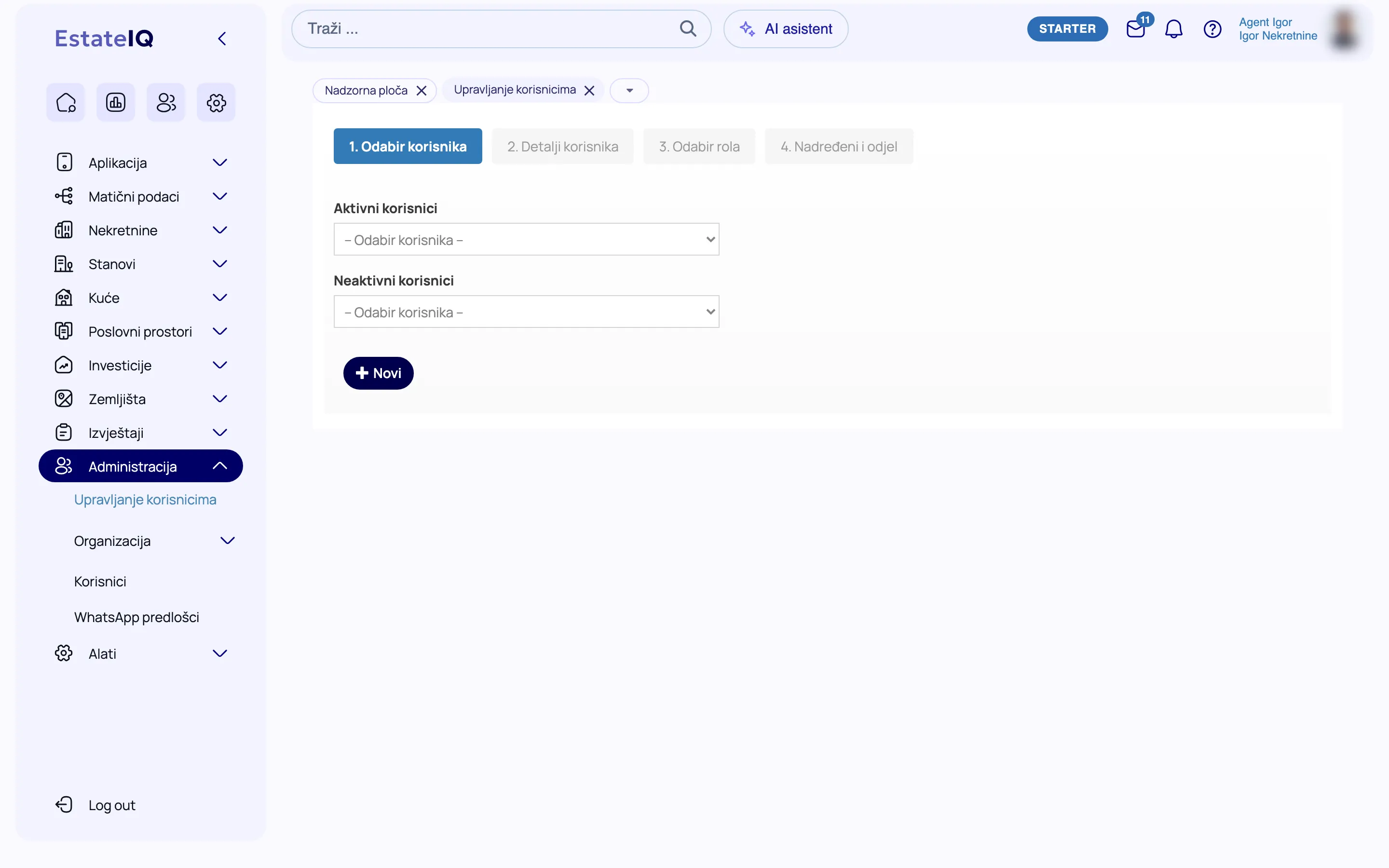
A role determines what a user sees and may do: whose clients and offers, which actions in sales and which reports. Roles are assigned by the company administrator, and the menus show only what is allowed.

  • The ladder of roles. From trial and junior agent, through senior agent, to manager and administrator. Each higher role contains the permissions of the lower ones.
  • Data protection among agents. A junior agent sees the agency’s offers, but on other agents’ offers does not see the owner, the exact address or the key number.
  • Who opens offers. Junior agents enter them, and a senior agent or a manager opens the offer for publishing.
  • Who closes a sale. A preliminary contract, a sale and an annulment of an offer are handled by a manager or the company administrator.
  • Personal assistant. Works on behalf of their superior, with their permissions and clients.
  • Business units. Offices and teams with their own reports and overview of offers.
Assigning a role to a user in EstateIQ.

Company / agency setup

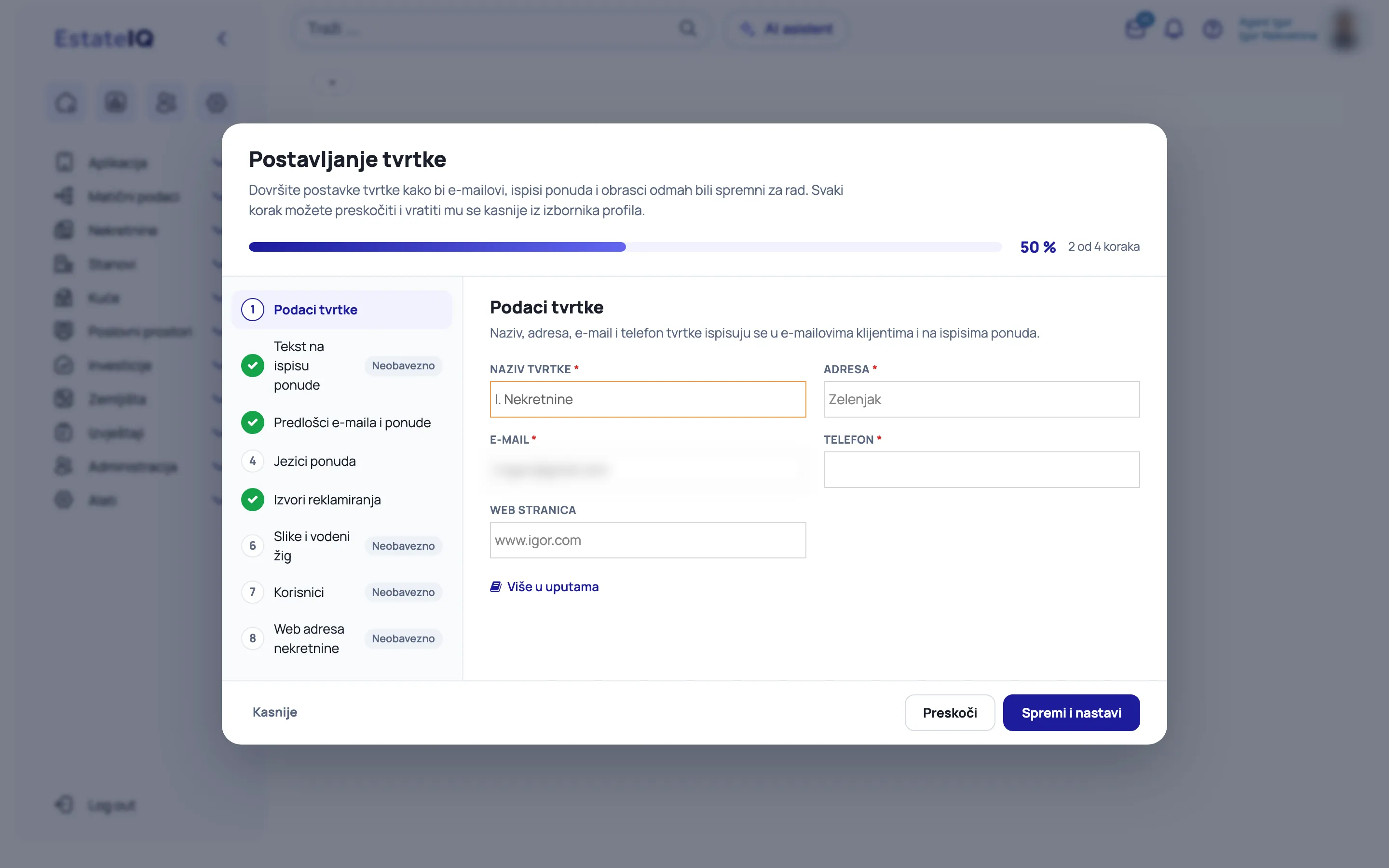
Before the agents start working, the company administrator goes through the Company setup guide once. The guide opens at login while one of the basic settings is missing.

  • Progress at a glance. At the top you see what percentage of the settings is completed, and on the left the list of steps.
  • Company details. Name, address, email and phone, which appear in emails to clients and on offer printouts.
  • Offer text and templates. The footer text for sale or rent, and email and offer templates with your company details.
  • Offer languages and advertising sources. The languages in which you enter offers, and the sources that record where a client heard about the agency.
  • Images and watermark. The image size and the watermark for images uploaded from then on.
  • Users and property web address. Optional steps: user management and the property web address for portal listings.
  • At your own pace. You can save a step and continue, skip it for later or close the guide. Everything can still be changed in the company profile.
The Company setup guide in EstateIQ, with its steps and progress.

Settings and customization

You adapt EstateIQ to your way of working. The administrator goes through the company setup once, and each user then chooses the look that suits them.

  • Design 2026. Lists with cards, forms as a single page of sections and a modern search. The classic look remains available.
  • Light and dark theme. You choose the colors of the app, and it can also follow the setting of your computer or phone.
  • Customize the layout. You move and hide fields and groups to suit you, and the administrator sets the default template.
  • List or table. You view every list as cards or as a table, with quick search and filters.
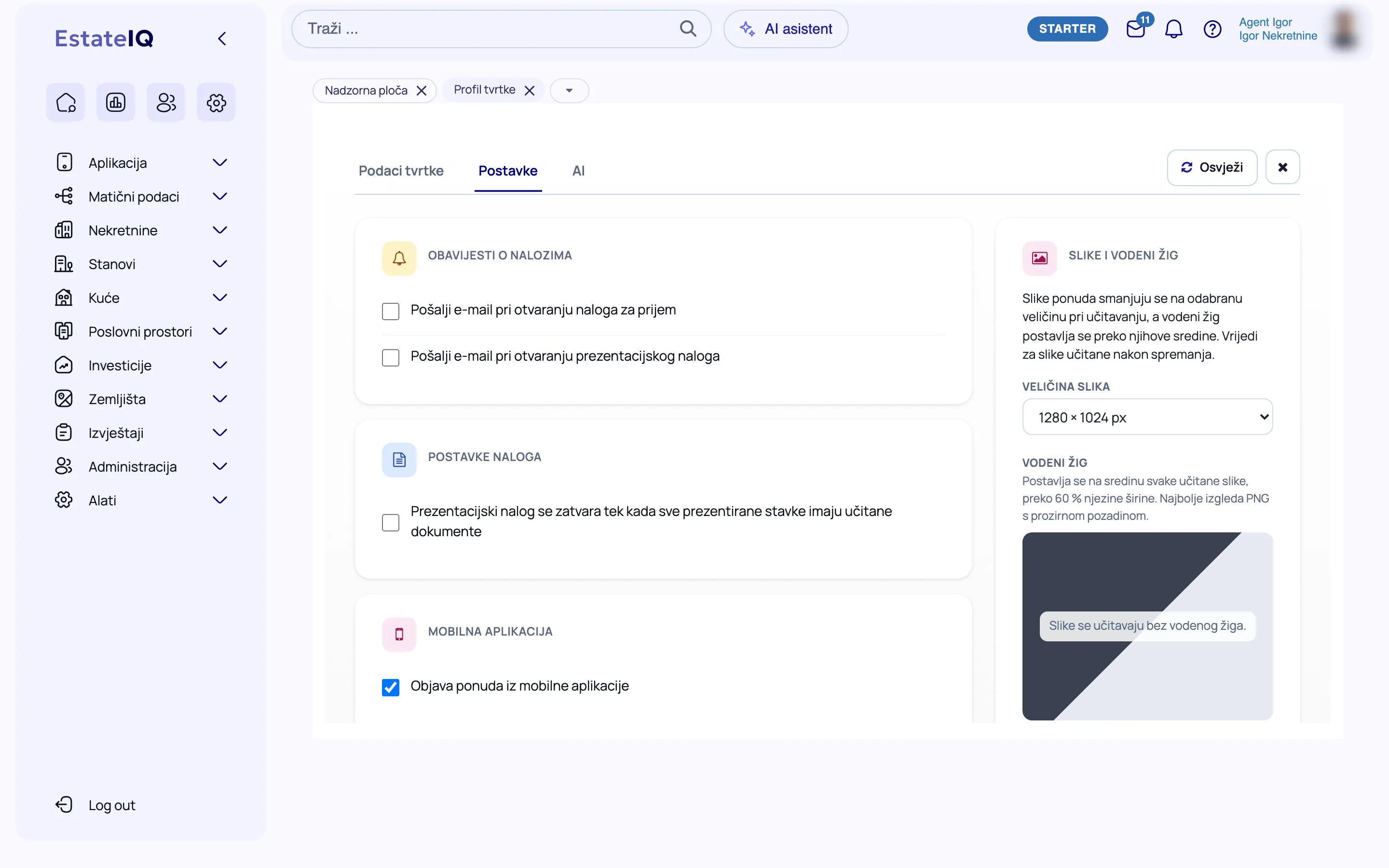
  • Company settings. Order notifications, the closing rule for viewing orders, publishing from the mobile app, and image size and watermark in one place.
  • Templates. Emails and offers as PDFs carry your agency’s details.
  • Connecting to external systems. An API for offers and for receiving inquiries from websites and other systems.
  • Enabled through support. WhatsApp messages to clients and sending emails from your domain’s address.
The company profile in EstateIQ, on the Settings tab.

Mobile app

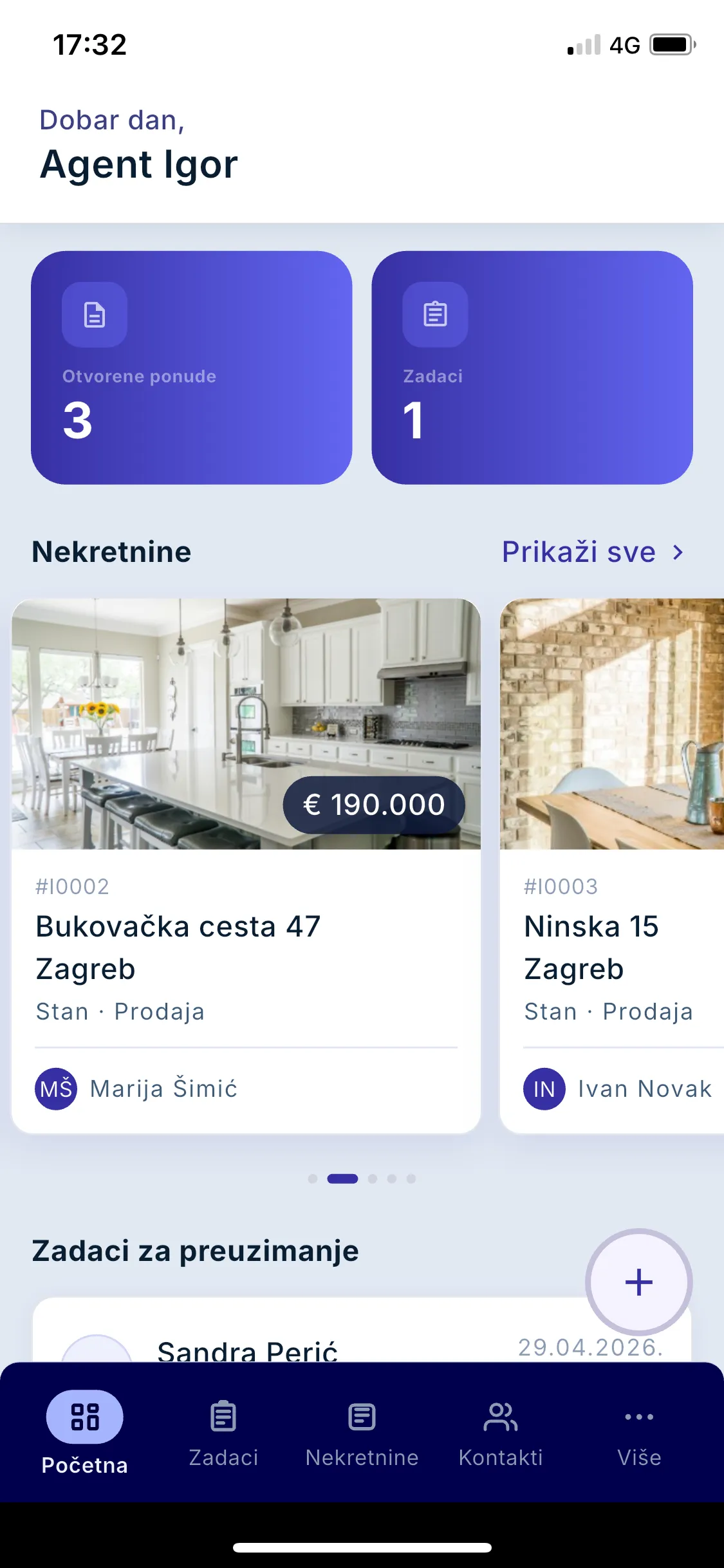
The mobile app follows the agent’s day in the field: tasks, property intake, photos, contacts and publishing to portals. The app and the office work with the same data.

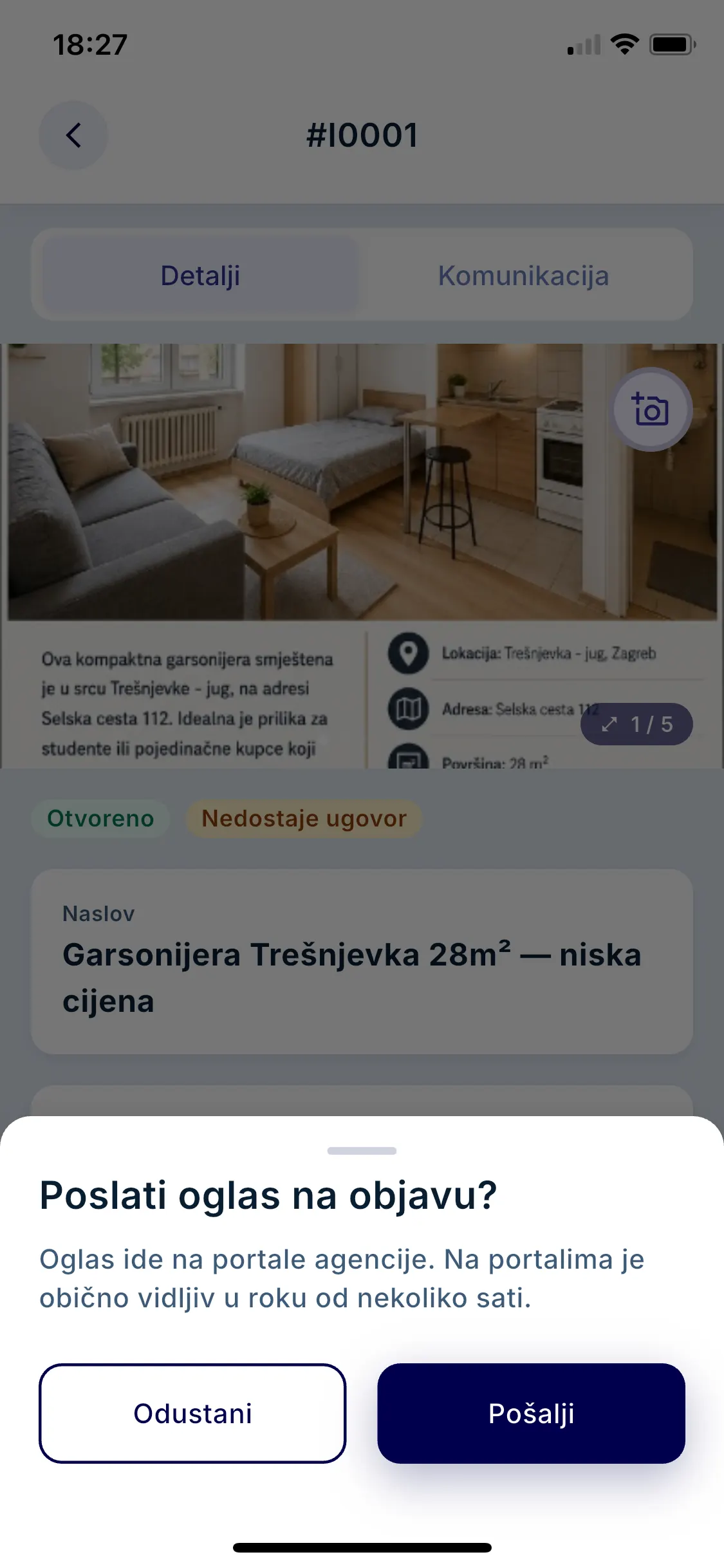
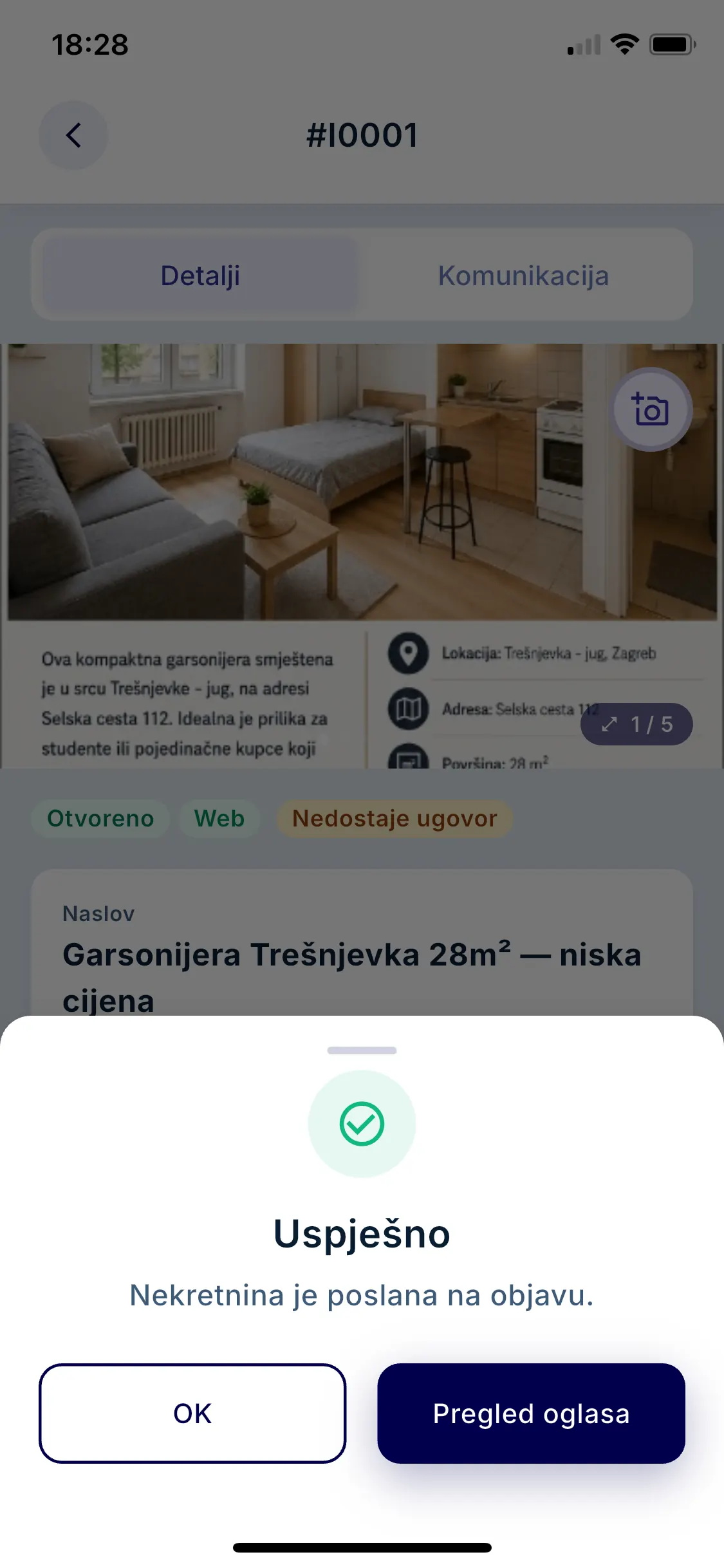
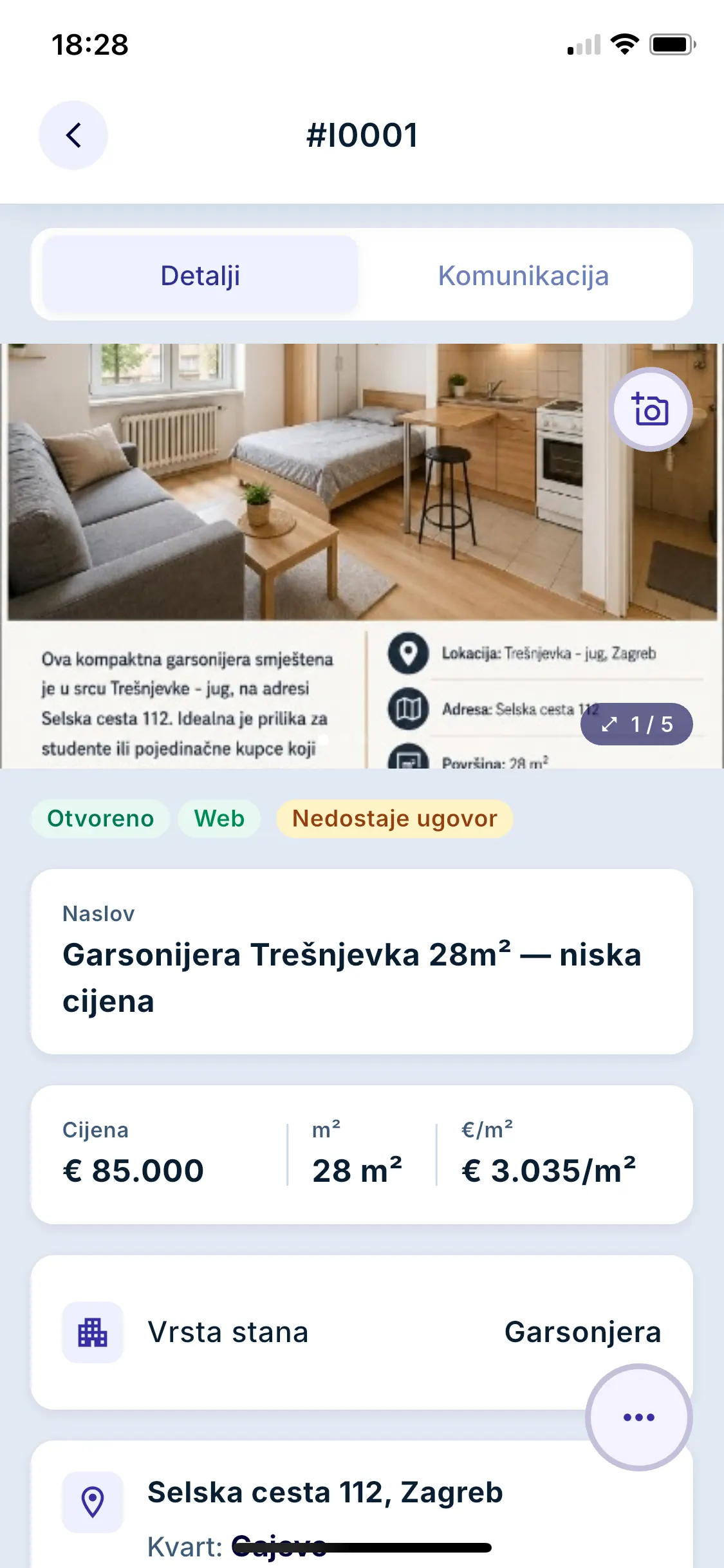
  • Publishing to portals. When a property is ready, you send it to your agency’s portals in a few taps. You can open the listing preview straight away, and the Web tag shows that it has been sent for publishing.
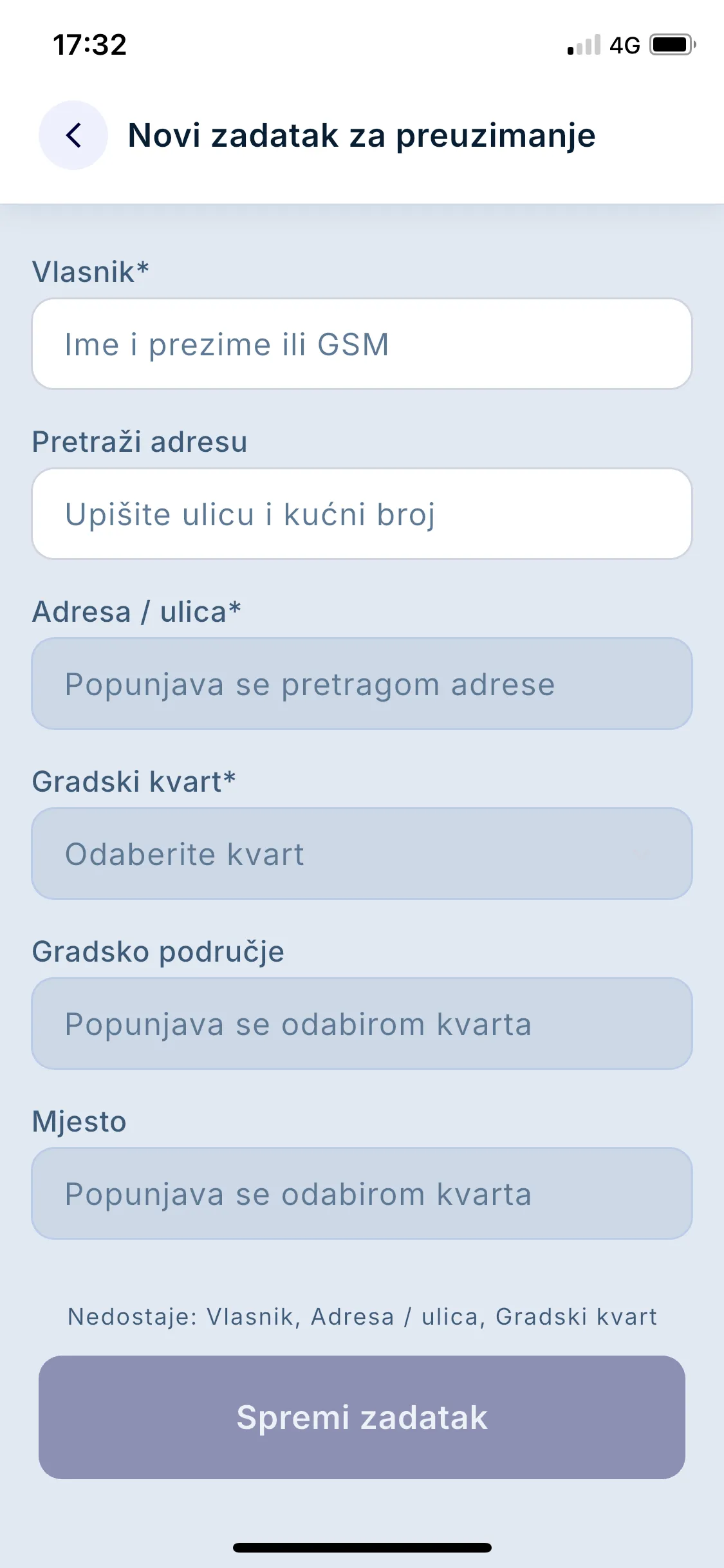
  • A new property in the field. You turn an intake task into an offer, and the entry stays saved on the device until you complete it.
  • Photos. Up to 30 photos from the camera or the gallery, and the upload continues in the background.
  • Location. The current location, address search and a map for the public coordinate.
  • Tasks. Intakes and viewings in one list, and you close a viewing with a photo of the signed confirmation.
  • Contacts. Client search, a call or an email with one tap, and contact entry.
  • Links to client requirements. The properties that match your client requirements, new and already presented.
  • AI description and translation. The description is created from the entered data, and translated into English with one tap. You can also share the offer as a PDF.
  • Notifications. When the agent receives a new viewing order, when a property is added to an order and when a client has not been contacted within 4 hours.
  • Home and properties. Your offers, tasks and contract alerts on one screen, and you can search and filter the list of properties.
  • Login and language. Biometric login and an interface in Croatian, English, German, Italian and Slovenian.
The home screen of the EstateIQ mobile app with open offers and tasks.
A new intake task in the mobile app with address search.
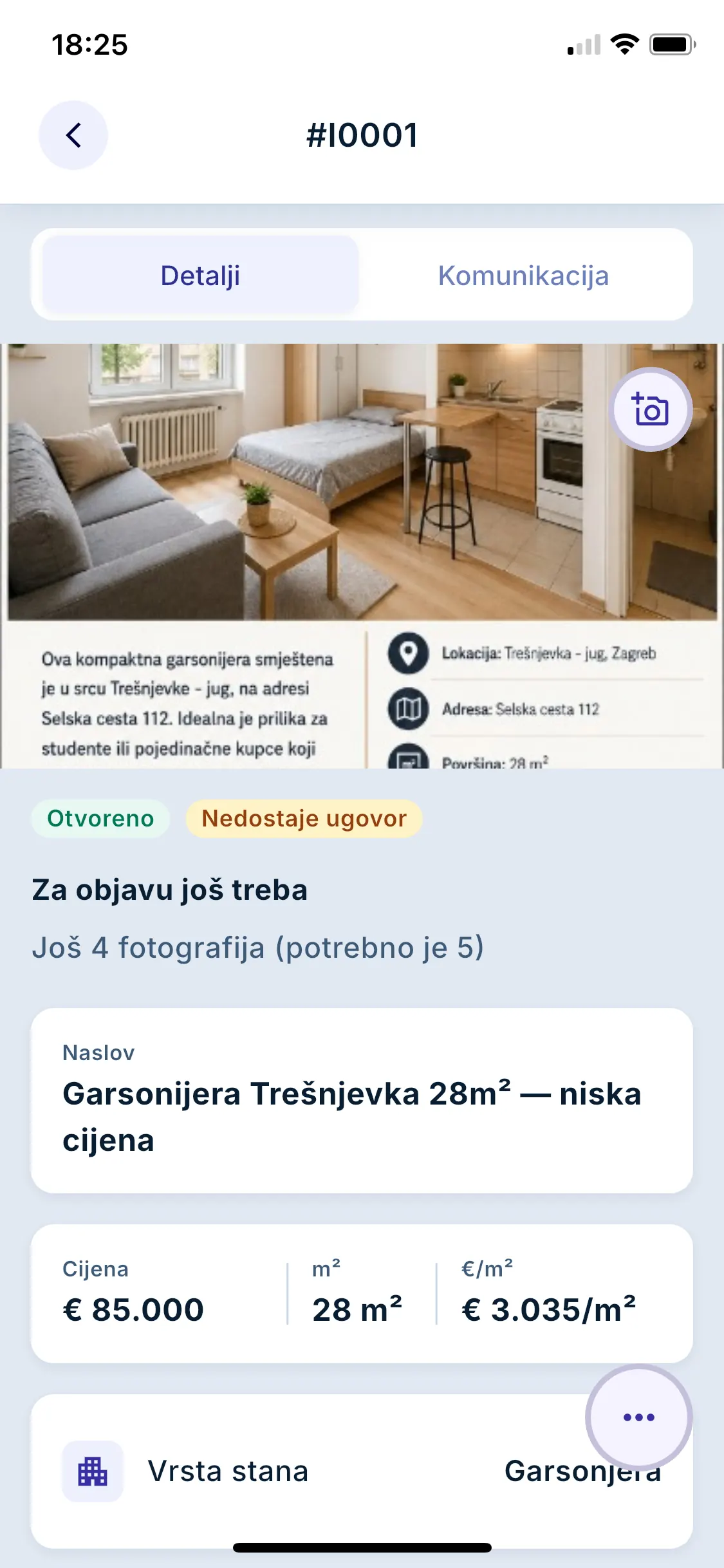
Property details in the mobile app, with the price and what is still needed for publishing.
The mobile app asking whether to send the listing for publishing, with a Send button.
Confirmation in the mobile app that the property has been sent for publishing.
Property details in the mobile app with the Web tag.

Additional services

Contracted separately and not part of the basic plans. Price: on request.

Request a quote

Additional service

AI assistant

The agent says in plain words what is needed, and the assistant opens a form with suggested values. The conversation opens in a side panel, from the top bar of the app.

  • Entry by conversation. You enter a new client, requirement or offer in plain words, and the assistant asks what is missing.
  • Working with offers. Changing data, opening, publishing on the website and a market value estimate.
  • Search by description. You describe what you are looking for, and AI sets criteria that you can check.
  • Contact entry. You say whom you spoke with, and the assistant records the contact or the viewing.
  • Users. The administrator adds and deactivates users by conversation.
  • You confirm. Nothing is saved without your confirmation.
  • Voice conversation. Voice conversation and a driving mode can be contracted additionally.
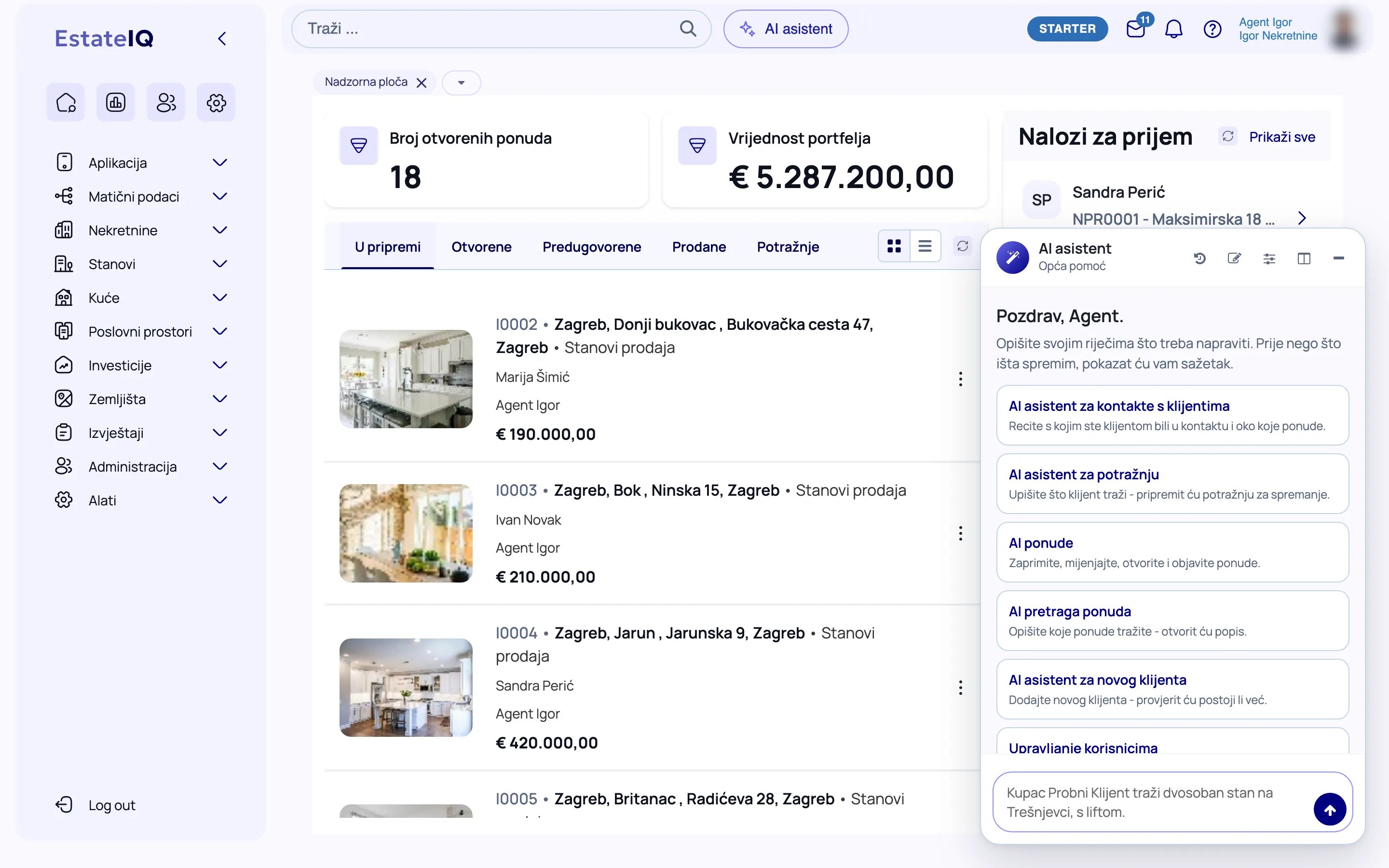
The AI assistant in the EstateIQ side panel, with its suggested commands.

Detailed guide (in Croatian): AI assistant

Additional service

Virtual agent

The virtual agent talks to a buyer who is signed in on your website and records everything the buyer says in EstateIQ. We handle the installation on your website as part of the quote.

  • Conversation with the buyer. It asks what the buyer is looking for and enters it as the client’s requirement.
  • Offers in threes. It shows only open offers and public data, without the address, the owner and the agent.
  • Buyer reactions. It records what interests the buyer and why, so the next offers follow the change.
  • Viewing request. The agency receives a viewing order with all the offers the buyer finds interesting.
  • Conversation overview. You see every conversation on the client, with the offers and answers.

Detailed guide (in Croatian): Virtual agent

Interface in six languages

The interface is available in Croatian, English, German, Italian, Slovenian and French.

See EstateIQ in action

Three short videos without sound: adding a property, the sale and reports. The videos show the EstateIQ interface in Croatian.

Adding a property in a few stepsFrom an empty form to a saved property.
Video description

The video has no sound and shows:

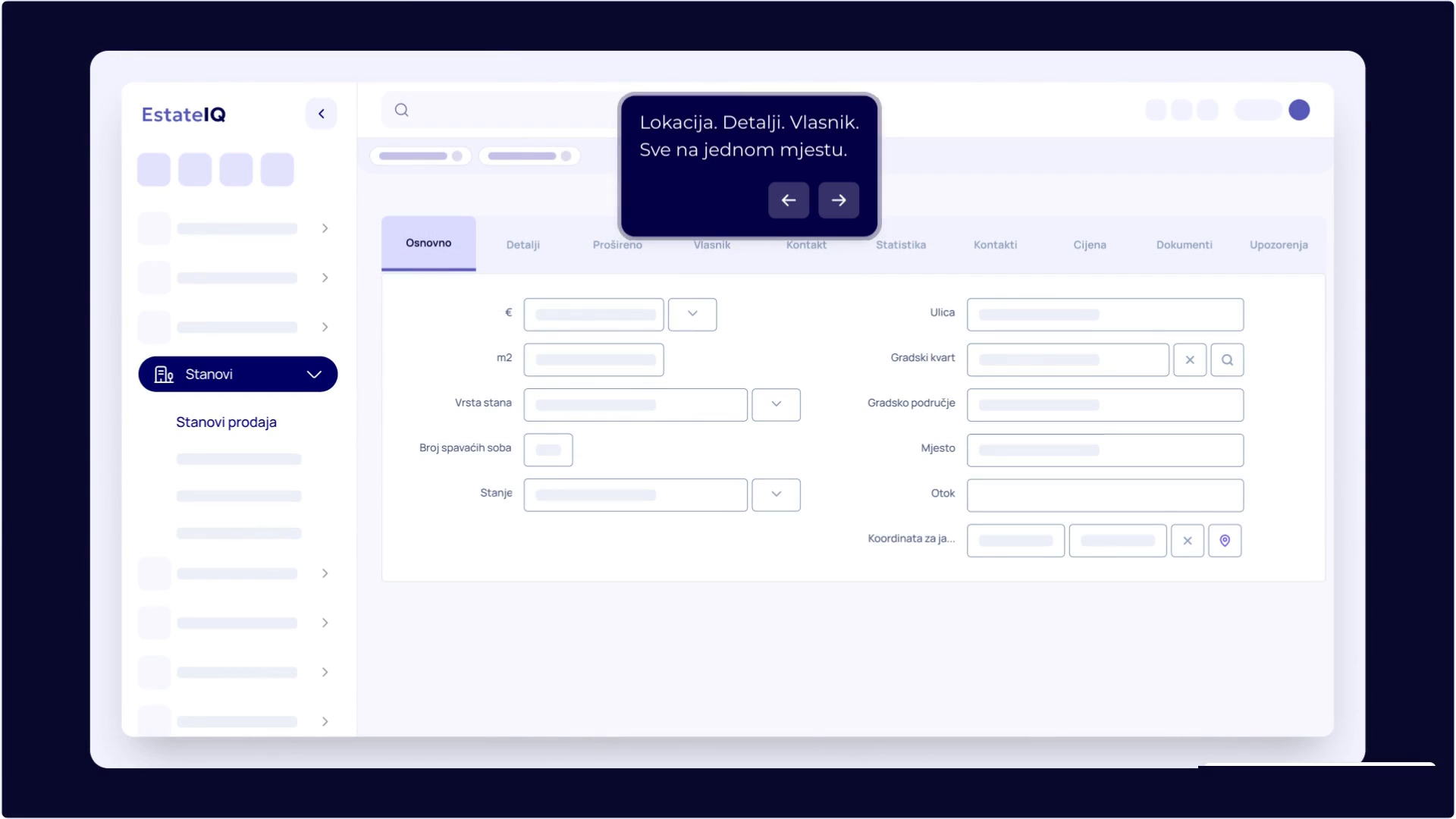
  1. The “Stanovi” (Apartments) category is opened from the menu on the left.
  2. In the property list, a click on the button for a new entry opens an empty form.
  3. The form is divided into tabs, among them “Osnovno” (Basic), “Detalji” (Details) and “Vlasnik” (Owner), so the location, details and owner are in one place.
  4. The completed data is saved with the “Spremi” (Save) button.
  5. From the menu next to the property in the list, the property is added to a group with one click, in the example “Web”.
From agreement to closed saleThe sale calculation comes from the offer form, and the status changes automatically.
Video description

The video has no sound and shows:

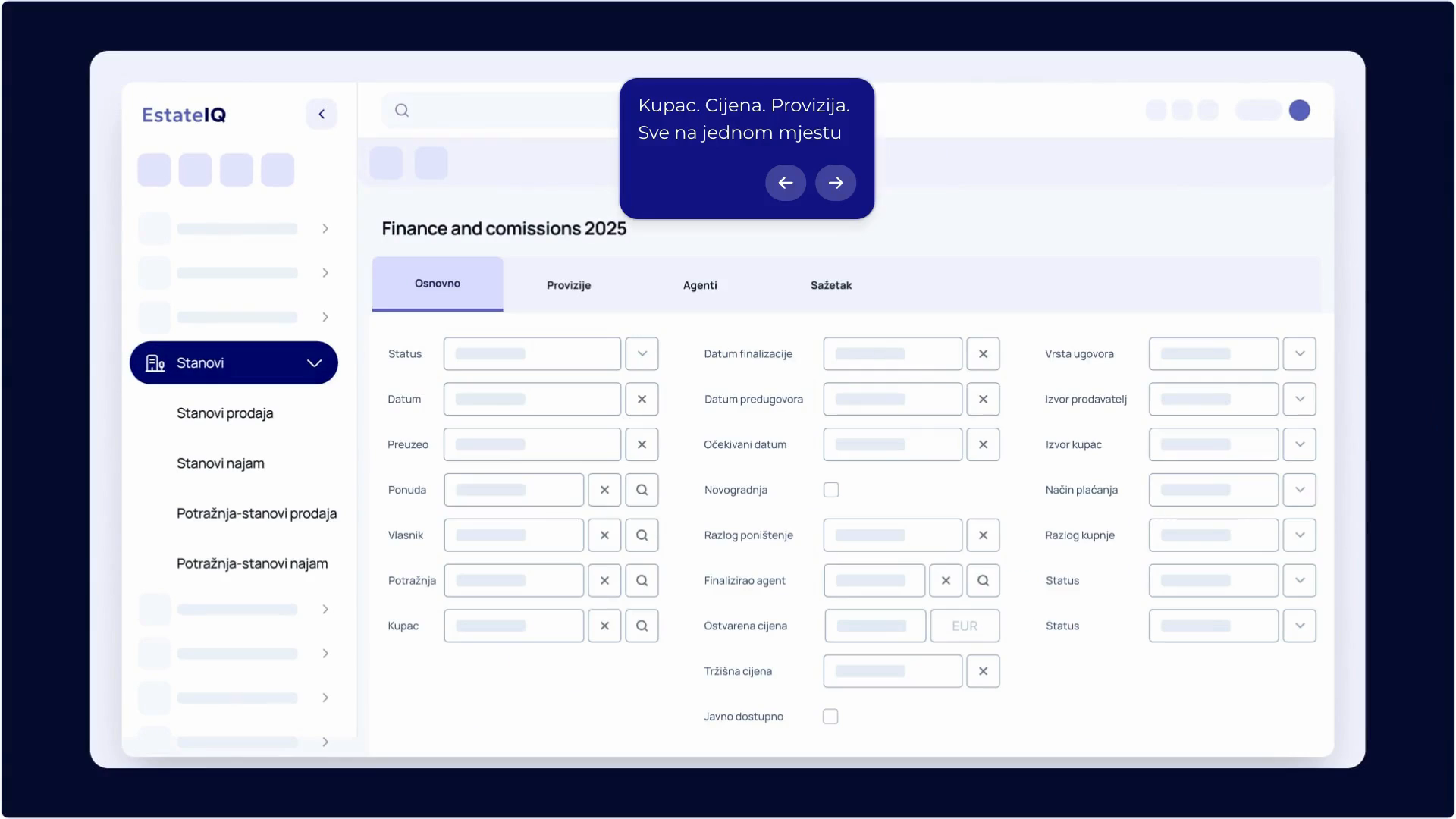
  1. In the apartment list, “Prodaj” (Sell) is selected from the three-dot menu next to the property.
  2. The sale form opens with tabs, among them “Osnovno” and “Sažetak” (Summary).
  3. The buyer, the price achieved and the payment method are entered.
  4. The “Spremi” button saves the sale.
  5. The property status is updated and the sale calculation is generated.
Business reports in one clickA report with filters, ready for export to CSV or Excel.
Video description

The video has no sound and shows:

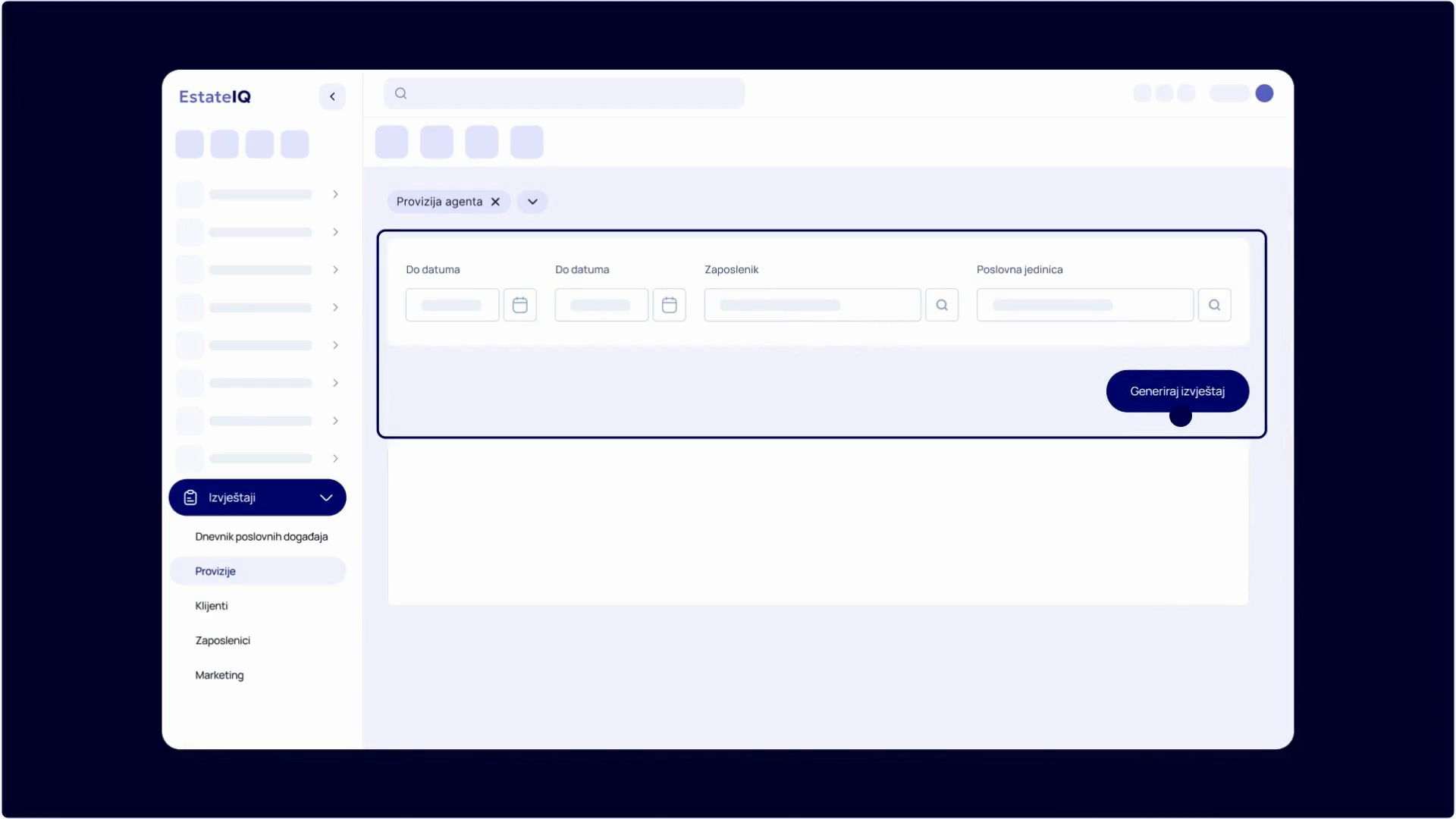
  1. The “Izvještaji” (Reports) category is opened from the menu on the left.
  2. A report is selected and filters are set, for example the period, the employee and the business unit.
  3. The “Generiraj izvještaj” (Generate report) button displays a table with the data.
  4. The report is downloaded as CSV or Excel, or printed.
  1. 1Adding a property in a few stepsDuration 0:33
  2. 2From agreement to closed saleDuration 1:00
  3. 3Business reports in one clickDuration 0:42

Book a free demo

Our team will show you how EstateIQ can improve your work.

  • Free, 30 minutes
  • Tailored to your agency
Open the calendar in a new tab

The calendar loads from Calendly (calendly.com), which sets its own cookies.

Prefer to write? Send us an inquiry or contact us at info@estateiq.hr.

Try EstateIQ in your agency

Open an account or arrange a demo presentation with us. See our Pricing page for prices.